
P&ID revision comparison: what changed between Rev B and Rev C
Every revision of a P&ID has to be checked for what changed — by the reviewer who asked for changes, by the disciplines downstream, and by whoever maintains the registers. This guide covers how revisions are usually compared, what slips through, and how a model-level comparison and a disciplined comment-closure step close the gap.
How revisions are marked today
When a P&ID is reissued, the drafter marks what changed: a revision cloud around each change, a triangle with the revision number beside it, and a line in the revision block describing the issue ("Issued for construction", "Revised per comments"). Reviewers and downstream disciplines rely on those marks to know where to look.
The marks are only as complete as the drafter's care. Common gaps:
- Changes made but not clouded — a line size corrected while fixing something nearby, a valve deleted when a branch was rerouted, an instrument retagged during a numbering clean-up.
- Clouds left from the previous revision, so the reviewer cannot tell old changes from new.
- Consequential changes on other sheets — a line that now continues to a different sheet, an off-page connector whose reference no longer matches.
- Changes outside the drawing area — notes, holds and the line designation table.
None of this is negligence; a busy sheet goes through several hands between revisions. But a review that only looks inside the clouds inherits every gap.
Overlaying PDFs: better, still noisy
The usual next step is a visual overlay: put Rev B and Rev C on top of each other and colour what is only in one. Many PDF tools do this. It catches unclouded changes, but it compares pixels, not plant objects, so it reports too much and explains too little:
- A tag moved 2 mm to make room shows as a change. So does a line re-routed on paper with no change to what it connects.
- A sheet re-plotted at a slightly different scale or origin lights up everywhere.
- A real change — a 4" line becoming 6" — appears as two characters in a label. The overlay shows that something differs; the reviewer still has to work out what it means.
Comparing the models instead
If both revisions exist as models — exported from the design tool, or converted from PDF or scan — they can be compared object by object. The comparison has three parts:
- Match the objects. Pair each component in Rev C with its counterpart in Rev B: by the object's identifier where the tool keeps it stable, then by tag, then by position and type for untagged items such as reducers and drains.
- Compare what each object is. For matched pairs, compare attributes: valve type and size, instrument function letters, set pressures, fail actions, equipment descriptions. For lines, compare nominal size and piping class segment by segment.
- Compare how they connect. A component that now connects to something different has been rewired, even if it did not move on paper. A component that only appears to have new neighbours because a valve next to it was deleted should be reported as a consequence, not as a separate change.
Unmatched objects are additions or removals. The output reads like an engineer's revision review: changes grouped by line, each one located on the sheet.
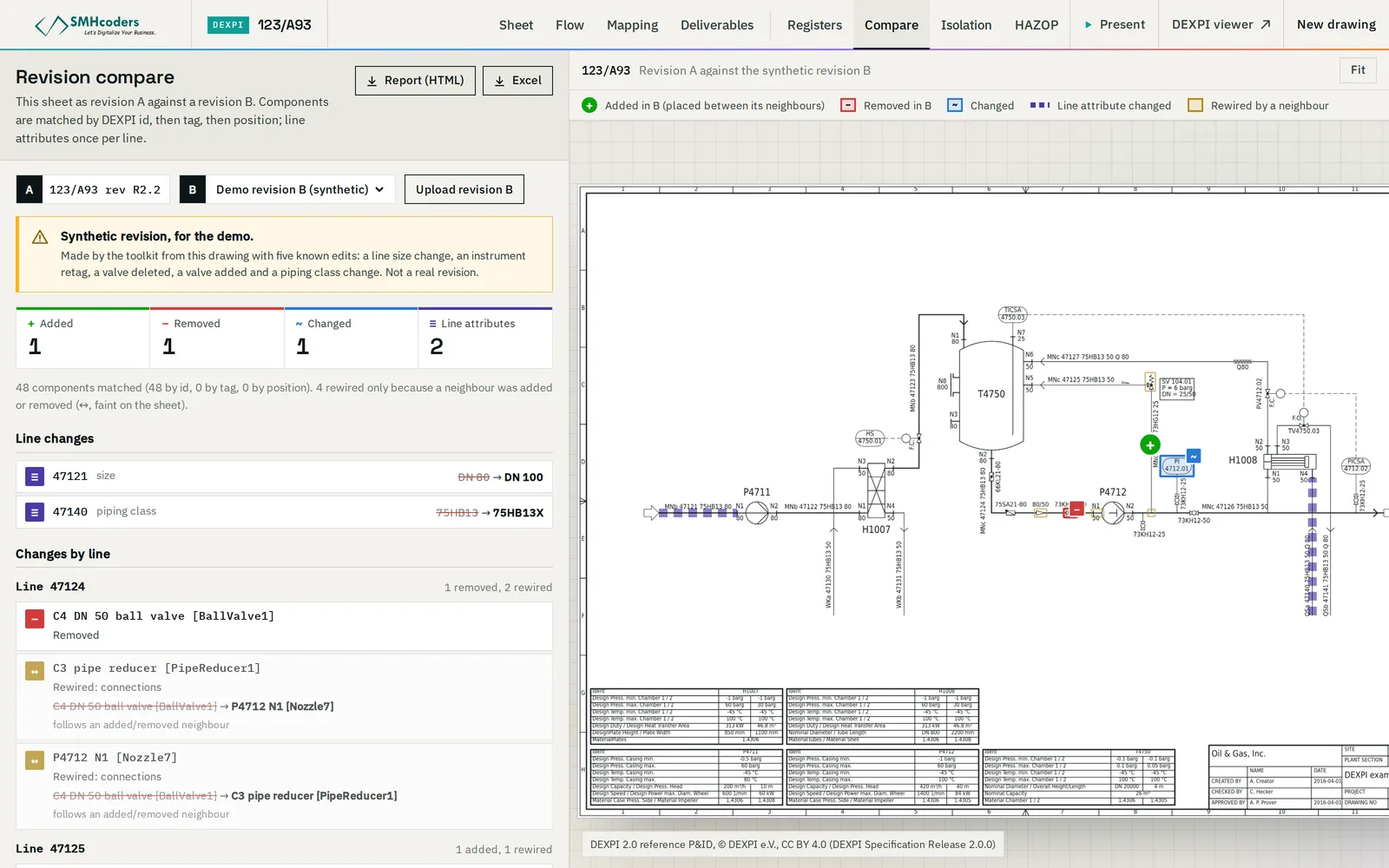
What a component-level diff catches
- Size and class changes along a line, including a spec break that moved.
- Valves added, removed or changed in type — a gate valve replaced by a ball valve, a check valve added on a pump discharge.
- Instrument changes — a retag, a changed function (an indicator that became a transmitter), a new alarm or trip function on an existing loop.
- Rewiring — a branch moved to the other side of a block valve, a relief valve now discharging to a different header, a signal line now going to a different controller.
- Attribute changes with no graphical change — a new set pressure or fail action that would be invisible on an overlay if the text is not on the sheet.
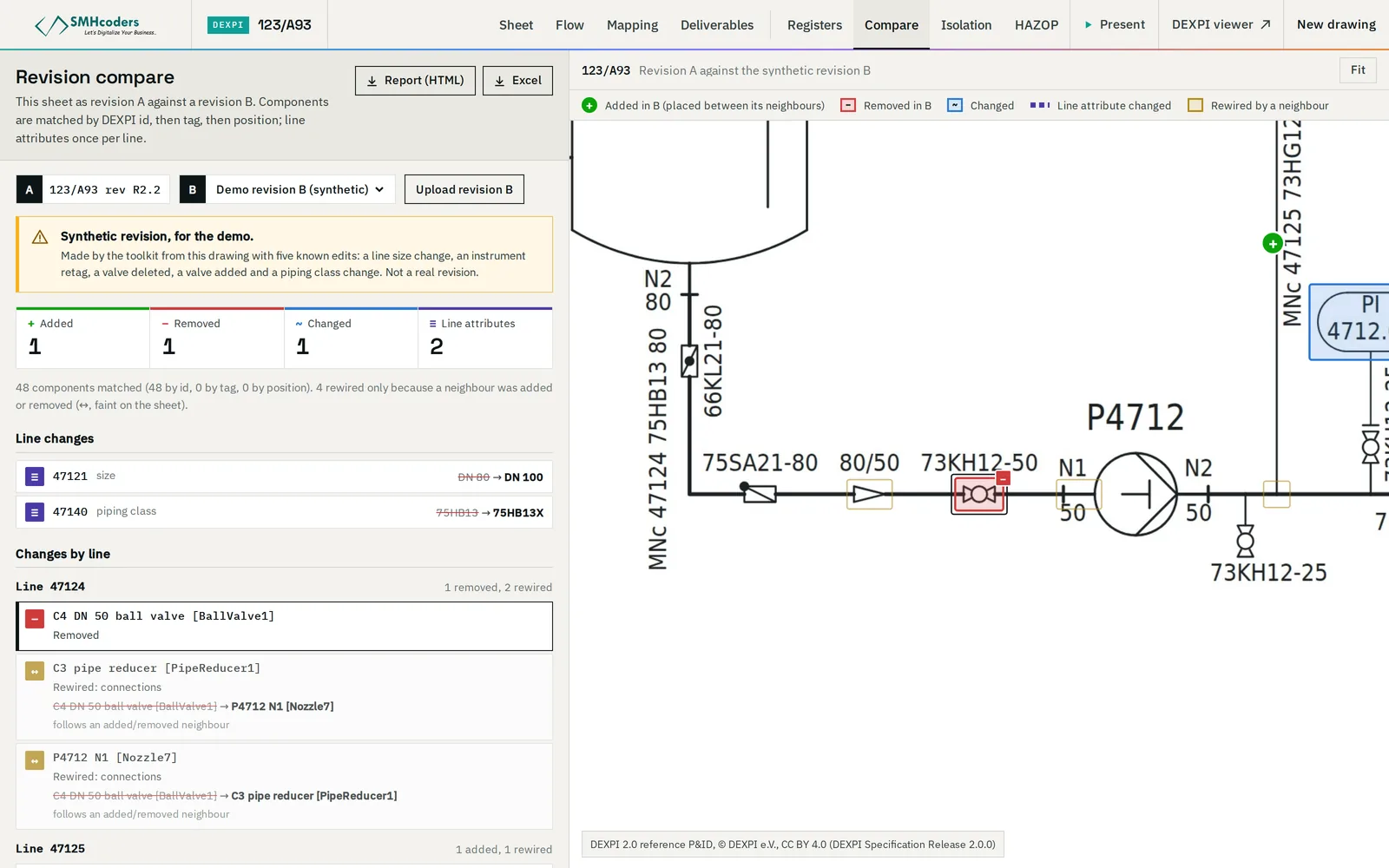
What it does not do: it reports what changed, not whether the change is right. A change that is correctly drawn but wrong in engineering terms is still the reviewer's to find. And if a revision was converted from a scan, a conversion difference can look like a change, so each reported change is confirmed against the drawing.
When the revisions are scans or PDFs
A model comparison needs both revisions as models. When the design tool's native files are available, export both revisions to DEXPI and compare those — the result is exact. When only PDFs or scans exist, both revisions are converted first. Conversion is not perfect, and a symbol read slightly differently on each sheet looks like a change. Two habits keep that manageable: convert both revisions with the same library and settings, and treat every reported change as a candidate to confirm on the drawing, not as a finding. The comparison still does the hard part — finding every place where something may have changed — and the reviewer confirms each one in seconds, on the sheet.
Revisions that renumber or split sheets need one more step: match sheets by content rather than number, so that a line moved to a new sheet is reported as moved, not as removed from one drawing and added to another.
Closing review comments on evidence
On most projects, the owner's or the contractor's reviewers record their comments on a comment resolution sheet (CRS): one row per comment, with the document and revision, the location, the comment, the originator's response and a status. The originator answers each comment — agreed and incorporated, agreed for the next issue, or disagreed with a reason — and the next revision is supposed to show the agreed changes.
The weak point is closure. A comment is often closed because the response says "incorporated", not because someone checked that the sheet changed where the comment asked. With a model comparison, closure becomes a check:
- For each open comment, find the changes the comparison reports at that location.
- No change where one was agreed: the comment stays open, whatever the response says.
- A change in the right place: the reviewer confirms it does what was asked, then closes the comment.
- Changes the comparison reports that answer no comment: these are the unrequested changes a reviewer most needs to see.
That last list is worth reviewing on every resubmission. Unrequested changes are where errors enter a drawing late in a project.
A revision review checklist
- Confirm you have the right pair: revision, date and status in both title blocks.
- Compare the whole sheet, not just the clouds — by model where you can, by overlay where you cannot.
- Walk the changes line by line; for each, check consequences on connected sheets (off-page connectors, continuation lines).
- Check every open comment against the changes at its location before closing it.
- List unrequested changes and ask the originator to justify each.
- Update the registers from the new revision, not from the previous register plus the clouds.
Tools for this
Our Revision Compare diffs two DEXPI models of a sheet — converted or exported — and reports components added, removed and changed, line size and class changes and rewiring, grouped by line and marked on the drawing. The same comparison runs inside ReviewMate, our engineering document review platform: when a contractor resubmits, each open comment is checked against the comparison, so a comment is closed on evidence on the sheet rather than on a reply.
 SMHcoders engineering teamAbu Dhabi · first published 20 Nov 2026 · updated 20 Nov 2026